Designated Tag Spreadsheet Template
This annotation template allows users to designate and select single or multiple tags from a dropdown in the “Tags” column of AVAnnotate’s spreadsheet template. A custom AVAnnotate menu converts the selected tags into the pipe-separated format required by the application to upload multiple tags in bulk.
Users interested in working with AVAnnotate collaboratively—and who are using a shared tagging system—should use this spreadsheet to streamline the tagging process.
Clicking the link above to create the Designated Tag Spreadsheet, there will be a warning under “Copy document” that says, “The attached Apps Script file and functionality will also be copied.” This is simply confirming that the script for the tag designation will be included with the spreadsheet.
Using the Designated Tag Spreadsheet Template
Once a copy of the spreadsheet is created, the next step is to create a shared set of tags that will be associated with the audiovisual material and annotations.
To create a shared tagging system, click on any one of the dropdowns in column D and select the tag editing tool in the bottom right corner.
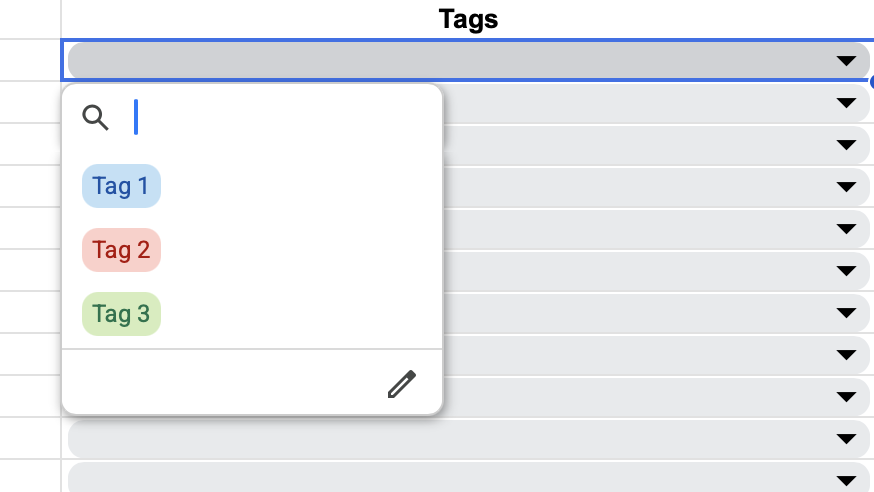
A window will pop up on the right side of the page with three sample tags (e.g., Tag 1, Tag 2, etc.).
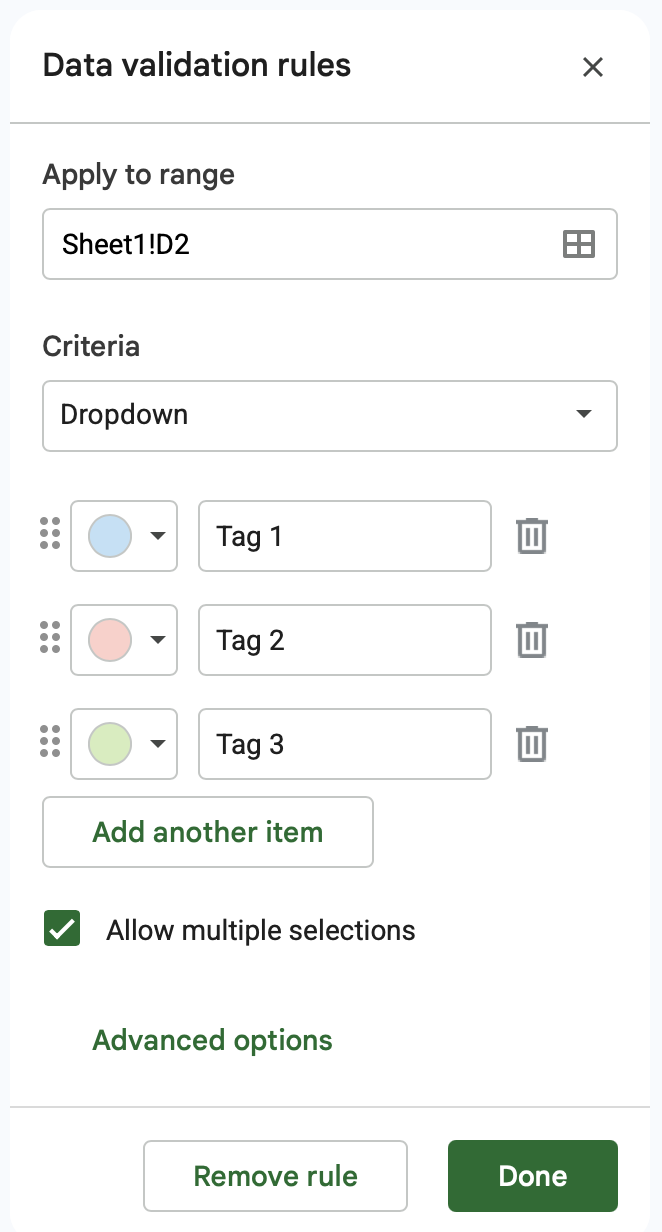
These are placeholders that can be replaced with the tagging system used for the project. Using “Add another item” will allow for the addition of more tags to the dropdown list. These tags can be color-coded as well.
Select “Done” when all tags have been added.
Editing an already-selected tag may cause an error in the spreadsheet. Be sure to unselect the tag in column D before making any edits to avoid errors.
Once the tags have been designated in the spreadsheet, AV material can be timestamped and annotated as usual.
When all timestamping, annotating, and tagging is complete, the next step is to run the spreadsheet’s built-in script that will format the tags for easy, error-free uploading to the AVAnnotate project. Click “AVAnnotate” in the top right corner of the menu bar of the Google Sheets file.
This step uses Apps Script, which is a code development platform that allows users to automate tasks within a Google workspace, such as Google Sheets. The script associated with this file tells Google Sheets to create a menu item called “AVAnnotate” that, when selected, formats a dropdown list of tags in column D into values that are separated by a pipe (|)— which is required for AVAnnotate to read the final data in the spreadsheet. To learn how to set up this step on a Google Sheets spreadsheet, review Setting Up the Designated Tags Script. If using the Designated Tags Spreadsheet at the top of the page, this script is already built into the spreadsheet.
To run the script, click “Format Tags.” The script will then prompt for authorization of the script (“ava”). Once authorization is complete, the tags will appear in the following format: “Tag 1 | Tag 2.” For example:

Once the spreadsheet has the correct tags separated by the pipe (|), users can download it and import it into the AVAnnotate application for bulk upload. Review the guidelines under Get Started for how to do so.
Setting Up the Designated Tags Script
This script will create a custom AVAnnotate menu that converts the selected tags from a dropdown list of tags into the pipe-separated format required by AVAnnotate.
To set up this script, users must first ensure they have the correct “Start Time,” “End Time,” “Annotation,” and “Tags” column headers with a dropdown menu inserted in column D. Users do not need to specify their tag options in the dropdown menu at this step; instead, users need to ensure their Google Sheets spreadsheet contains the required information following the formatting guidelines found in the Annotation Spreadsheet Template. Additionally, enable “Allow multiple selections” in the dropdown menu so users can select more than one tag in each cell. The spreadsheet may have timestamps and annotations already filled out, but it should, at minimum, contain the following information:

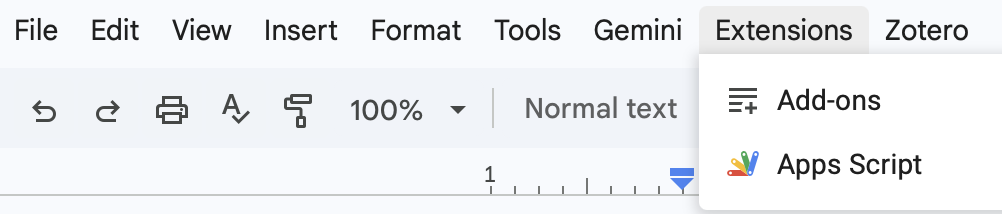
Now, in the menu bar, select “Extensions,” then “App Scripts.”
Replace the existing code with the following:
function onOpen() {
  SpreadsheetApp.getUi()
    .createMenu('AVAnnotate')
    .addItem('Format Tags', 'formatTags')
    .addToUi();
}

function formatTags() {
  const sheet = SpreadsheetApp.getActiveSheet();
  const range = sheet.getRange('D2:D' + sheet.getLastRow());

  // Remove dropdown validation so the formatted value can be written
  range.clearDataValidations();

  // Convert comma-separated tags to pipe-separated tags
  const values = range.getValues().map(row => {
    if (!row[0]) return [''];

    return [
      String(row[0])
        .split(',')
        .map(tag => tag.trim())
        .filter(tag => tag)
        .join(' | ')
    ];
  });

  range.setValues(values);
}
Save the script and return to the spreadsheet. Timestamp, annotate, and tag as usual.